Every Shopify store we take on gets the same audit. Different products, different industries, different revenue levels. Same problems.
Collection pages with zero text content. Theme code quietly linking every product to the wrong URL. Three uninstalled apps still loading JavaScript on every page. A homepage where the H1 tag wraps the logo image instead of actual words.
Not edge cases. These show up on nearly every Shopify store we open up, because Shopify’s own architecture creates most of them by default.
What follows is that audit. Not a generic SEO checklist with “Shopify” slapped in the title. Every check below exists because of something specific to how Shopify works: the theme system, the URL routing, the app ecosystem, the things that only break because you’re running on this platform.
We’ve organised it the way we work through it. Each check tells you what to look for, how to find it, and whether it’s urgent or can wait.
1. Duplicate Content & URL Structure
Shopify creates duplicate content by design. We wrote the complete technical guide to fixing it with all the Liquid code changes and implementation steps. Here, we’ll focus on quickly auditing whether your store is affected.
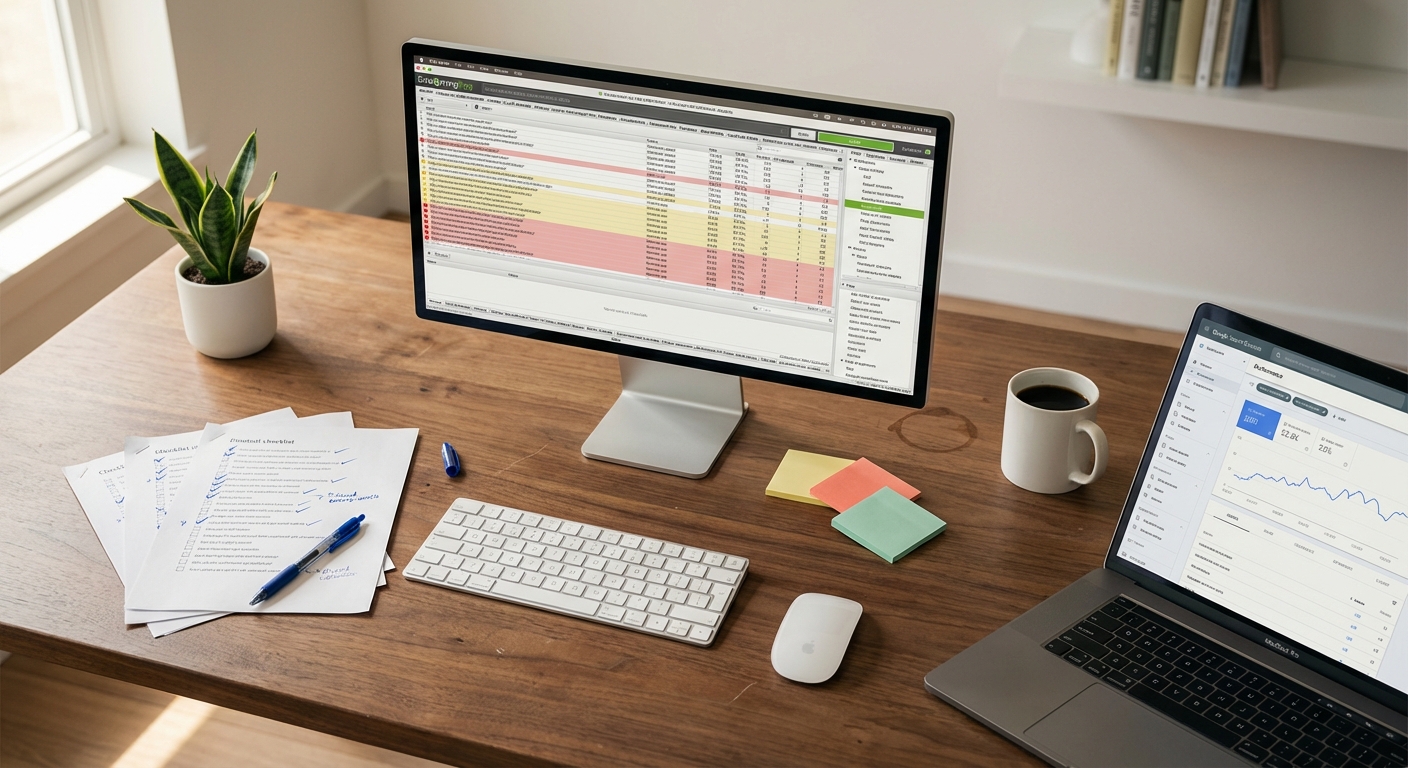
1. Internal links point to non-canonical product URLs. Crawl with Screaming Frog. Filter for internal links containing /collections/*/products/. If your collection grids link to these instead of clean /products/ URLs, your canonical product pages have zero internal links pointing to them. We find this on almost every store. Full fix in our duplicate content guide.
2. Tag pages are indexed. Run site:yourstore.com inurl:/collections/ in Google and look for tag-filtered URLs. Check GSC’s Pages report too. If indexed tag pages show up, they’re competing with your collection pages using the same H1 and meta description. Noindex them with a Liquid conditional. Verify Shopify’s default Disallow: /collections/*+* robots.txt rule is still intact. One thing most guides miss: if you use Shopify’s newer storefront filtering (?filter.p.* parameters), that default rule doesn’t catch those.
3. /collections/all is indexed. Check site:yourstore.com/collections/all in Google. If results come back, noindex it using the seo.hidden metafield, which pulls it from both the index and the sitemap in one move.
4. Pagination canonical strategy is deliberate. View source on ?page=2 of any collection. Is the canonical tag self-referencing or pointing to page 1? Either approach works. What doesn’t work is having no strategy at all, which is what most stores ship with. Our approach and reasoning in the duplicate content guide.
5. Variant URLs canonical to clean product URL. Select a variant on any product page, view source, confirm the canonical tag has no ?variant= parameter. Shopify handles this correctly out of the box, but apps can break it.
6. Recommendation tracking parameter bloat. Go to GSC > Pages and search for pr_prod_strat or pr_rec_id. Shopify’s own “Recommended Products” widgets can generate millions of discovered URLs from these tracking parameters. Block them in robots.txt.liquid.
7. Filter URLs canonical to base collection. Apply filters on a collection page. If the URL changes, view source and check that the canonical points to the unfiltered collection URL. If it doesn’t, block filter parameters in robots.txt.
2. Collection Pages
Collection pages are the most neglected pages on nearly every Shopify store we audit. And they shouldn’t be, because they’re your money pages for category-level keywords. “Men’s running shoes.” “Organic skincare.” “Gold necklaces.” These are the terms with buying intent and volume, and most stores have nothing on those pages except a product grid. We wrote the full collection page SEO guide covering content strategy, sub-collections, and internal linking. Below are the audit checks.
8. Collection pages have text content above and below the product grid. Crawl with Screaming Frog and filter collection pages by word count. If any collection page sits under 100 words of text, it’s thin content in Google’s eyes.
The approach that works: 50-100 words of intro text above the product grid explaining what the collection is and who it’s for. Then 150-300 words below the grid, things like FAQs, buying guides, material comparisons, whatever fits that category. Where the text sits matters. Content positioned above the product grid carries more weight for keyword ranking than the same content buried below it.
Across our own client work, the split approach (text above and below the grid) consistently outperforms both zero-content and content-only-below layouts.
9. Each collection has a unique, keyword-targeted title tag and meta description. Export all collection page title tags via Screaming Frog. Look for duplicates, anything over 58 characters getting truncated, and generic titles that miss the keyword entirely. “Red” is not a title tag. “Red T-Shirts for Men | Free NZ Shipping” is.
10. Collection page H1 matches target keyword. The collection title becomes the H1. Cross-reference your H1s against your keyword map. If your collection is called “Summer 2026” but people search for “women’s summer dresses,” that’s a mismatch costing you rankings.
11. Collection images have descriptive alt text. Inspect source on collection pages. Banner and hero images almost always have empty alt text or something useless like “collection banner.” Fix them.
12. Subcollection hierarchy exists where needed. Shopify doesn’t support true parent-child collections, which limits your breadcrumb depth and internal linking architecture. Check whether subcollections link from parent collections in both navigation and on-page content. If they don’t, use manual breadcrumbs and metafield-based relationships to simulate the hierarchy. A well-built sub-collection strategy can 10x your keyword coverage from the same inventory.

3. Product Pages
We’ve covered conversion-focused product page changes in our product page optimisation guide, and the full SEO strategy (title tags, meta descriptions, schema, and Merchant Center) in our product page SEO guide. This section is the audit checks.
13. Every product has a unique meta title and description. Screaming Frog export, filter for duplicates. Flag anything blank. Shopify auto-generates meta tags from the product title and the first few lines of the description, and those auto-generated versions almost never rank or earn a click.
14. Product descriptions are unique and substantial. Thin descriptions (one or two lines) and copy-pasted manufacturer text kill rankings. Want to check for manufacturer copy? Paste a sentence from any product description into Google in quotes. If a dozen sites have the same paragraph, that’s cross-site duplicate content. Aim for 300 words minimum per product covering features, benefits, materials, sizing, and use cases.
15. All product images have unique, descriptive alt text. Between 30% and 50% of Shopify stores we audit have missing or repetitive alt text. The most common version of this problem: the product title repeated word-for-word across all six images. Export products via CSV and check the Image Alt Text column. Each image needs alt text describing what’s in that specific photo. “Blue linen shirt front view on white background” tells Google something useful. “Blue Linen Shirt” repeated six times tells it nothing new.
16. Image file names are descriptive. Files named IMG_4523.jpg instead of blue-cotton-oxford-shirt.jpg. Shopify won’t let you rename images after upload, so this has to happen before they go into the store. Screaming Frog’s image audit catches filenames starting with IMG_, DSC_, Screenshot, or random character strings.
17. Out-of-stock products handled correctly. Deleted or hidden products create 404 errors that wipe out any backlinks and rankings those pages earned. Check GSC > Pages > Not found (404) and cross-reference against your backlink data. Keep pages live with “Sold Out, Notify Me” messaging, or 301 redirect to the closest alternative. Never 404 a page that has backlinks pointing to it.
18. High-demand variants have dedicated product pages. Shopify doesn’t support per-variant meta titles. A shirt in five colours shares one title tag. If variants have real search volume (someone searching “blue linen shirt” versus “red linen shirt”), create them as separate products with unique titles, descriptions, and URLs. Interlink them. You can check this by searching Google for variant-specific queries and seeing whether competitors with separate pages outrank you.
4. Theme Heading Structure
Most merchants never check this. Most themes get it wrong.
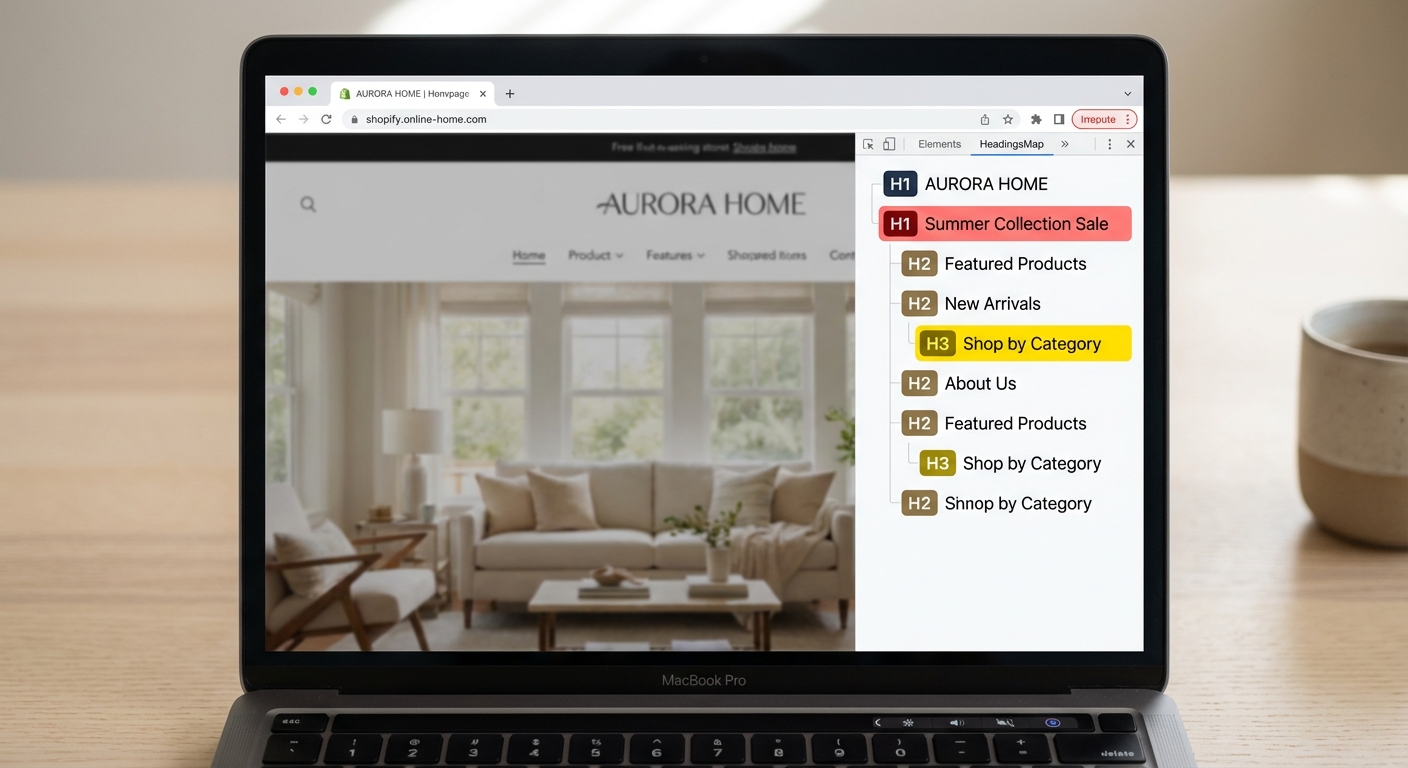
19. Homepage H1 is text, not the logo. Most Shopify themes, Dawn included, wrap the store logo in an <h1> tag on the homepage. Your page’s primary heading ends up being either an image with no text or just the store name. Neither tells Google what the page is about.
View source on the homepage. Search for <h1. If it contains an <img> tag or just your brand name, change the logo wrapper from <h1> to a <div> in header.liquid. Then add a real, keyword-rich H1 to the homepage content area.
20. One H1 per page on every template. Themes scatter H1 tags across sections without thinking about it. A collection page ends up with the collection title as H1, plus a promotional banner section with its own H1, plus a featured product block with yet another one. Three H1s, one page.
Crawl with Screaming Frog and filter for pages with H1 count greater than one. Check homepage, collection, product, blog, and static page templates. Demote the extras to H2 in the Liquid files. Dawn’s banner section is one of the usual offenders here.
21. Heading hierarchy flows correctly. H1 to H2 to H3 with no skipped levels. Shopify themes use heading tags for visual sizing instead of semantic structure constantly. You’ll find H3 tags before any H2 appears, or H2 tags in the footer sitting before the main content H1 in the DOM. HeadingsMap browser extension or the WAVE accessibility tool will flag this on each template. Move visual styling to CSS classes. Keep heading tags for meaning.
22. Blog post H1 is the post title. Some themes render the blog name (“News” or “Journal”) as the H1 and push the post title into an H2. View source on any blog post. The post title should sit inside the <h1> tag.
5. Structured Data
Shopify themes ship with bare-minimum schema. Most stores are missing five or six schema types that drive rich results.
23. Product schema includes all recommended fields. Default themes output name, price, image, and availability. That’s it. Missing from nearly every Shopify store we open: brand, SKU, GTIN/MPN, aggregateRating, review, shippingDetails, and returnPolicy.
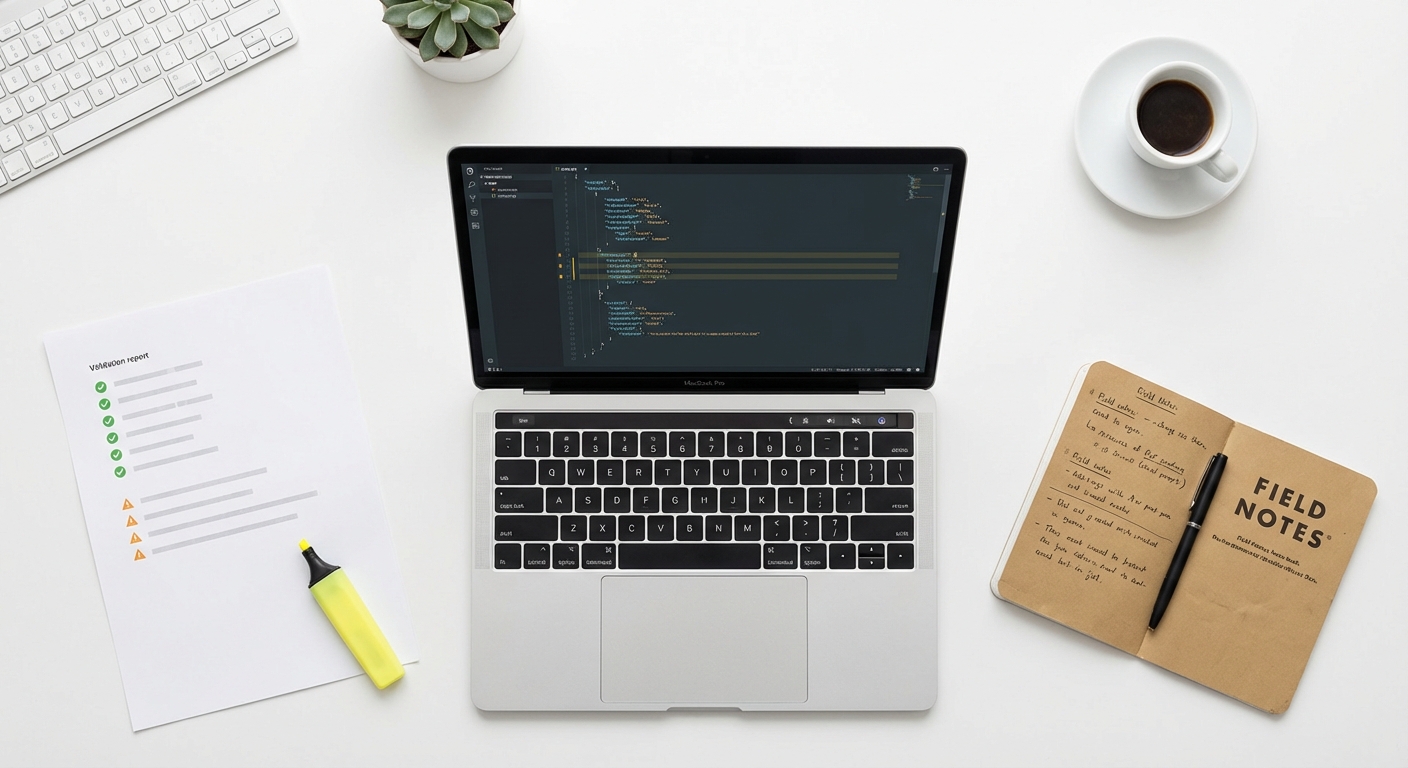
Paste product page URLs into Google’s Rich Results Test. Note every field that triggers a warning or comes up missing. If you’re running Google Merchant Center, pay close attention here. Merchant Center is stricter than Google Search. A missing priceValidUntil or return policy field can flag your entire product feed.
24. No duplicate or conflicting schema from multiple sources. This one catches people off guard. Your theme outputs Product schema in Microdata format. Your review app injects its own Product schema in JSON-LD. An SEO app adds a third layer. Google sees three conflicting Product blocks on the same page and has to guess which one is right.
View page source and Ctrl+F for ld+json. Three or more script blocks on a product page means duplication. Also search for itemtype="http://schema.org/Product" to catch the Microdata version. Pick one source of truth for each schema type. Remove the rest.
25. BreadcrumbList schema on product and collection pages. Most Shopify themes don’t output BreadcrumbList structured data, even themes that display visual breadcrumbs on the page. Run Rich Results Test on product and collection pages and look for BreadcrumbList in the detected items. When you implement it, use one “primary collection” per product (set via metafield) so the breadcrumb path doesn’t change depending on which collection the customer arrived from.
26. Organization schema on homepage. Missing from every default Shopify theme. You need this for Knowledge Panel eligibility. Run Rich Results Test on your homepage, look for Organization. Add JSON-LD with business name, logo, URL, social profiles, and contact info.
27. Article schema on blog posts. Often missing or only half-done. Run Rich Results Test on blog posts and verify author, datePublished, dateModified, publisher, and image are all present and valid.
28. FAQ schema on pages with FAQ sections. If your collection pages or product pages have FAQ content (and they should, per check #8), add corresponding FAQPage schema. Rich Results Test will tell you whether it’s picking up correctly.
29. Price formatting correct in schema. Some themes output prices with commas or currency symbols in the JSON-LD: "$1,299.00". Schema.org needs plain decimals: "1299.00" with priceCurrency set separately. Check the price field in your Product JSON-LD.
6. Internal Linking
Shopify’s architecture creates internal linking problems that don’t exist on other platforms.
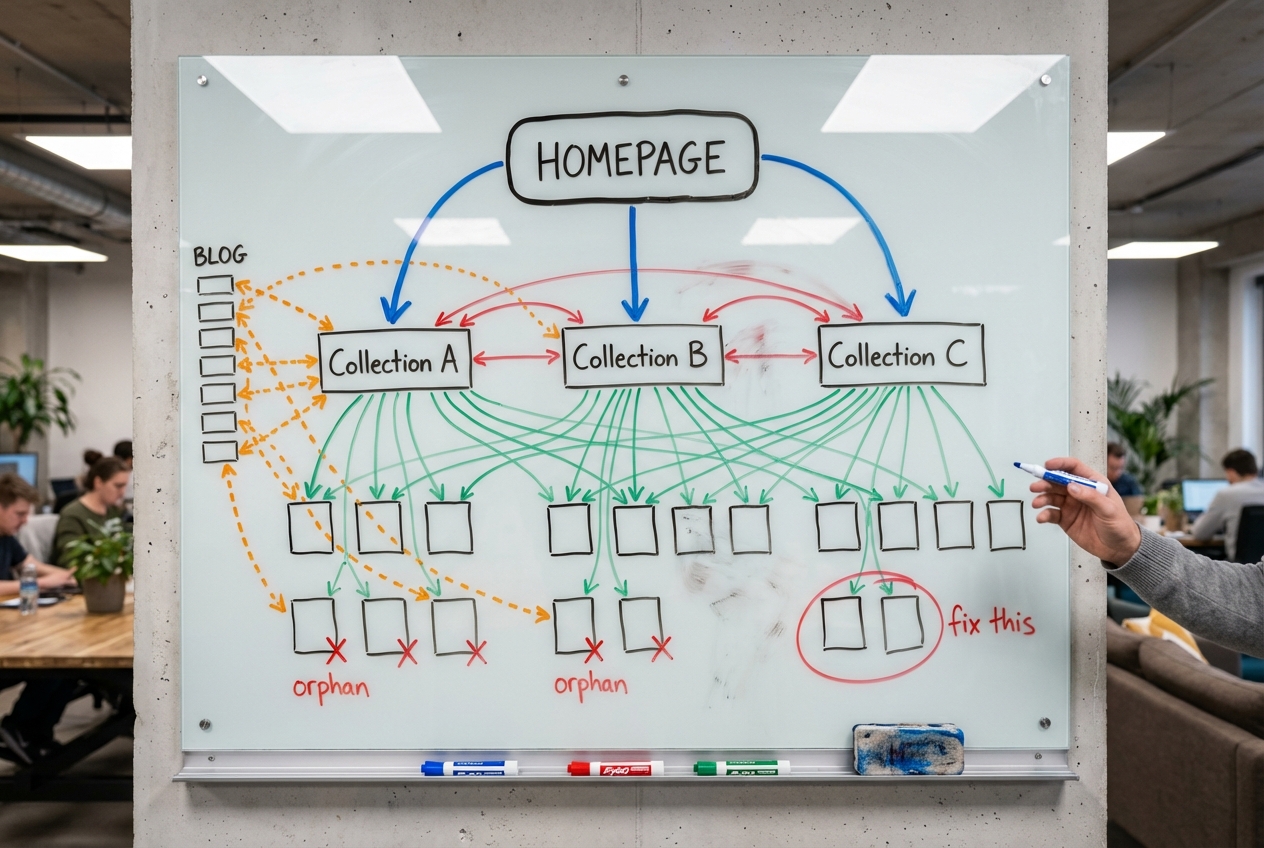
30. No orphan product pages. Because collection grids link to /collections/x/products/y (the non-canonical URL), the canonical /products/y URL often has zero internal links pointing to it. Crawl tools flag these as orphan pages. Ahrefs Site Audit calls it out specifically: “Canonical URLs have no incoming internal links.” Classic Shopify. Fixing check #1 (the collection template links) resolves this at the same time.
31. All important pages reachable within 3 clicks from homepage. Deep collection structures push products to four or more clicks from the homepage. Google treats deeper pages as less important. Run Screaming Frog’s crawl depth report. Filter for anything at depth four or beyond. Flatten things with collection links in your mega menu and “Shop by category” sections on the homepage.
32. Product pages link back to parent collections. Shopify product pages don’t link to the collections they belong to by default. Link equity flows down from collection to product, but nothing goes back up. Visit any product page. Are there links to parent collections beyond just the breadcrumb? If not, add a “Shop more from this collection” or “Related categories” section that programmatically links to every collection the product sits in.
33. Blog posts link to product and collection pages. Blog content sitting in isolation is a wasted asset. Review each post for contextual links to relevant product and collection pages. Check that anchor text uses real keywords, not “click here” or “learn more.”
34. Navigation menus are crawlable HTML links. Some themes render mega menus entirely through JavaScript. Search engine crawlers can’t follow those links, which makes your navigation invisible to Google. Disable JavaScript in your browser and check if the links are still there.
7. Robots.txt & Sitemap
35. Default robots.txt rules are intact. Shopify’s defaults block /admin, /cart, /checkout, /search, and /collections/*+*. If someone customised robots.txt.liquid and broke these, pages that should be blocked are exposed to crawlers. Visit yourstore.com/robots.txt and verify the default disallow rules are all present.
36. Additional disallows for Shopify-specific problem URLs. The default robots.txt doesn’t catch everything. Newer filter parameters (?filter.p.*), recommendation tracking params (pr_prod_strat, pr_rec_id), and specific tag page patterns all slip through.
Cross-reference your robots.txt against the URL patterns from Section 1. We add these on every client store: Disallow: /collections/*?filter*, Disallow: /*pr_prod_strat*, and Disallow: /*pr_rec_id*.
37. Sitemap doesn’t include noindexed pages. This is sending Google contradictory signals. The sitemap says “this page exists and matters” while the noindex tag says “don’t index this.” Download your sitemap from yourstore.com/sitemap.xml and cross-reference against any noindexed pages. The seo.hidden metafield handles both at once, pulling pages from the index and the sitemap together.
38. “Indexed, though blocked by robots.txt” errors reviewed. Common Shopify-specific warning in GSC. Shopify blocks certain URLs via robots.txt but can’t add a noindex tag to them (bots can’t see the tag if they can’t crawl the page). Google sometimes indexes the URL anyway through external links. Check GSC > Pages for this status. Some hits are expected, policy pages for instance. Review for anything that shouldn’t be there.
8. App Bloat & Page Speed
The average Shopify store scores 25-30 out of 100 on speed. Only 48% pass all three Core Web Vitals on mobile. Apps are the main reason, and nobody talks about it enough.
39. Installed apps audited for frontend impact. Every app can inject JavaScript and CSS on every single page, including pages where the app isn’t doing anything. A store with 15-20 apps can push LCP past four seconds and the store owner has no idea what’s causing it because Shopify doesn’t surface this information anywhere obvious.
Open Chrome DevTools, go to the Network tab, and identify every third-party script, its file size, and where it comes from. Shopify’s Theme Inspector Chrome extension shows which apps inject the most code. Disable apps one at a time and re-test in PageSpeed Insights. Remove anything that isn’t earning its place.
40. Uninstalled apps left dead code behind. This surprises people. Uninstalling a Shopify app removes it from your admin dashboard. It does not remove the code from your theme files. Orphaned JavaScript, CSS snippets, and Liquid includes keep loading on every page, doing nothing except adding weight.
Search your theme code editor for the names of apps you’ve removed in the past six months. Check the browser console for 404 errors or JavaScript errors pointing to apps that don’t exist anymore. Build this into your routine after every app uninstall.
41. Hero image is NOT lazy-loaded. Many Shopify themes lazy-load the hero image by default. Stores running a lazy-loaded LCP image are a full second slower on Largest Contentful Paint compared to stores that eager-load it. A full second. From one attribute.
View source on your homepage. If the hero image has loading="lazy", change it to loading="eager" and add fetchpriority="high". Five minutes of work, measurable difference.
42. Below-the-fold images do use lazy loading. The flip side of #41. Every image that needs scrolling to reach should have loading="lazy". Just never apply it to anything above the fold.
43. Images have explicit width and height attributes. Missing dimensions cause layout shifts (CLS). The repeat offenders on Shopify: announcement bars that load late, cookie consent banners, and review widgets that push content down after the page has already rendered. PageSpeed Insights CLS diagnostic will show you exactly where the shifts happen.

9. Content & Keyword Strategy
44. No keyword cannibalisation between collections, products, and blog posts. A collection page, a product page, and a blog post all targeting “blue linen shirt.” Google doesn’t know which one to rank. Sometimes it picks the wrong one. Sometimes it picks none.
Search site:yourstore.com "target keyword" for your top keywords. If multiple pages appear, you have cannibalisation. GSC Performance will also show you keywords where multiple URLs are splitting impressions.
The fix is a keyword map. Collection pages get broad category terms (“linen shirts”). Product pages get specific long-tail (“blue Italian linen shirt slim fit”). Blog posts get informational queries (“how to style a linen shirt for summer”). One primary keyword per page, no overlap.
45. Content matches search intent per page type. Collection pages should match browse and shop intent. Product pages should match buy intent. Blog posts should match research intent.
Search your target keyword in Google and look at what’s ranking. If the SERPs are full of collection-style pages and you’re trying to rank a blog post for that term, you’ve got an intent mismatch. Align your page type to what Google already rewards.
46. Thin content pages identified and flagged. Product pages with two lines of text. Collection pages with zero text. Blog posts under 500 words that barely scratch the topic. Pull up Screaming Frog’s word count report. Filter for anything under 100 words. Enrich those pages or merge them into stronger ones with 301 redirects.
10. Redirects & Analytics
47. No redirect chains. Change a product URL handle three times and you end up with a chain: A redirects to B, B redirects to C. Each hop leaks ranking power and adds load time. Shopify auto-creates redirects when you change handles. It does not collapse existing chains.
Screaming Frog’s redirect chain report will surface these. Or test old URLs in DevTools Network tab and count hops. After any handle change, go back and update older redirects to point straight to the final destination.
48. Deleted products and pages have redirects. Removed products with backlinks or ranking history need 301 redirects to relevant alternatives. Not the homepage. A relevant collection or a comparable product. Check GSC > Pages > Not found (404) and cross-reference against your backlink data.
49. Google Analytics attribution is correct. A surprising number of stores have broken analytics. Revenue gets tracked as referral traffic from “Shop” or “shopify.com” (Shopify’s payment portal) instead of the real acquisition channel. Open your GA4 acquisition report. If “shop.app” shows up as a top referral source for revenue, attribution is broken. Fix cross-domain tracking between your storefront and the checkout domain.
Bonus: AI Search Visibility
Shopify reported that AI-driven traffic to stores went up eightfold between January 2025 and early 2026. Whether that trend continues or flattens out, you should know where you stand.
50. Know your AI crawler stance. Check your robots.txt for blocks on GPTBot, ClaudeBot, PerplexityBot, and similar user agents. Some themes and security apps add these blocks by default without telling you.
Here’s the honest version of this: nobody agrees on what to do here. Allowing AI crawlers means your products and content might surface in AI-generated answers. That’s visibility. It also means users get the answer without clicking through to your store. That’s lost traffic. Blocking them preserves your content but could reduce how often you appear in AI-powered search. This is a business decision, not an SEO best practice. There isn’t one yet. Make the call deliberately and revisit it as things evolve.
51. Product schema is good enough for AI citation. AI search engines pull heavily from structured data when surfacing product info. Complete Product schema (descriptions, specs, pricing, availability, reviews) helps with this. But it’s also a no-regret move. The same fields that make your products citable by AI are the fields that drive rich results in Google. You benefit regardless of where you land on the AI crawler question.
What to Fix First
Not everything here carries equal weight. This is the triage order we follow:
Fix today, direct ranking impact:
- Collection template links pointing to non-canonical product URLs (#1)
- Tag pages indexed and cannibalising collections (#2)
- Homepage H1 wrapping the logo instead of real text (#19)
- Duplicate schema from multiple apps (#24)
- Dead code from uninstalled apps (#40)
- Hero image lazy-loaded (#41)
Fix this week, meaningful improvement:
- Add text content to collection pages (#8)
- Product descriptions thin or duplicated (#14)
- Product schema missing recommended fields (#23)
- Keyword cannibalisation between page types (#44)
- Additional robots.txt disallows for filters and tracking params (#36)
Fix this month, incremental gains:
- BreadcrumbList and Organization schema (#25, #26)
- Subcollection hierarchy (#12)
- Analytics attribution (#49)
Frequently Asked Questions
How do I do an SEO audit on Shopify?
Start with a Screaming Frog crawl to surface duplicate content, heading issues, and broken links. Then check Google Search Console for indexing errors and coverage problems. Audit collection pages for thin content, validate structured data with Google’s Rich Results Test, and review your app stack for speed impact. This post covers 51 specific checks in the order we run them.
Is Shopify bad for SEO?
No. But Shopify’s architecture creates specific problems other platforms don’t. The collection-path duplicate URL issue, forced URL prefixes, limited robots.txt control, auto-generated tag pages. All need manual attention. None are deal-breakers. With proper technical work, Shopify stores rank well.
What are the biggest SEO issues on Shopify?
Five things show up on every audit we run: internal links pointing to non-canonical product URLs because of the | within: collection Liquid filter, tag pages indexed and competing with collection pages, thin or zero content on collection pages, missing or conflicting structured data from multiple apps, and app bloat destroying Core Web Vitals.
How often should I audit my Shopify store’s SEO?
Full audit two to three times per year. Monthly spot-checks on GSC coverage errors, unexpected traffic drops, new crawl errors, and Core Web Vital regressions. Run a targeted check after every major change: theme updates, app installs or removals, big product catalog changes.
Do I need Shopify Plus for good SEO?
No. Every fix in this checklist works on standard Shopify plans. Plus gives you checkout.liquid customisation, higher API rate limits, and more redirect capacity (20 million versus 100,000). But the core SEO work is identical.
Need This Done for Your Store?
Our Shopify SEO service covers every check in this audit, plus the implementation. We dig into your Search Console data, crawl your store, and fix the issues. Not just flag them in a spreadsheet.
If your store is doing $10K+ a month and SEO hasn’t been properly looked at, book a strategy call. We’ll pull up your store live and walk through the top five issues on the call.